

Since the release of the powerful JW Peptide Presets, we have received a large number of user questions and feedback. Among them, one topic has been mentioned repeatedly: how to properly chain JW Peptide Presets.
Because peptide presets are designed to run in a specific sequence rather than simultaneously, understanding how to chain them correctly is an important part of using these presets effectively. To address this common question, this blog will walk you through exactly how to create, save, and run a JW Peptide preset chain, step by step.
Prepare Your Software
Option 1: Download the Spooky2 Starter Pack
If this is your first time using Spooky2, please download the full Spooky2 software package, which already includes all required components.
Option 2: Download the JW Peptide Presets only
If Spooky2 is already installed on your computer, you can simply download and install the JW Peptide Presets.
DownloadStep-by-Step: Creating a JW Peptide Preset Chain
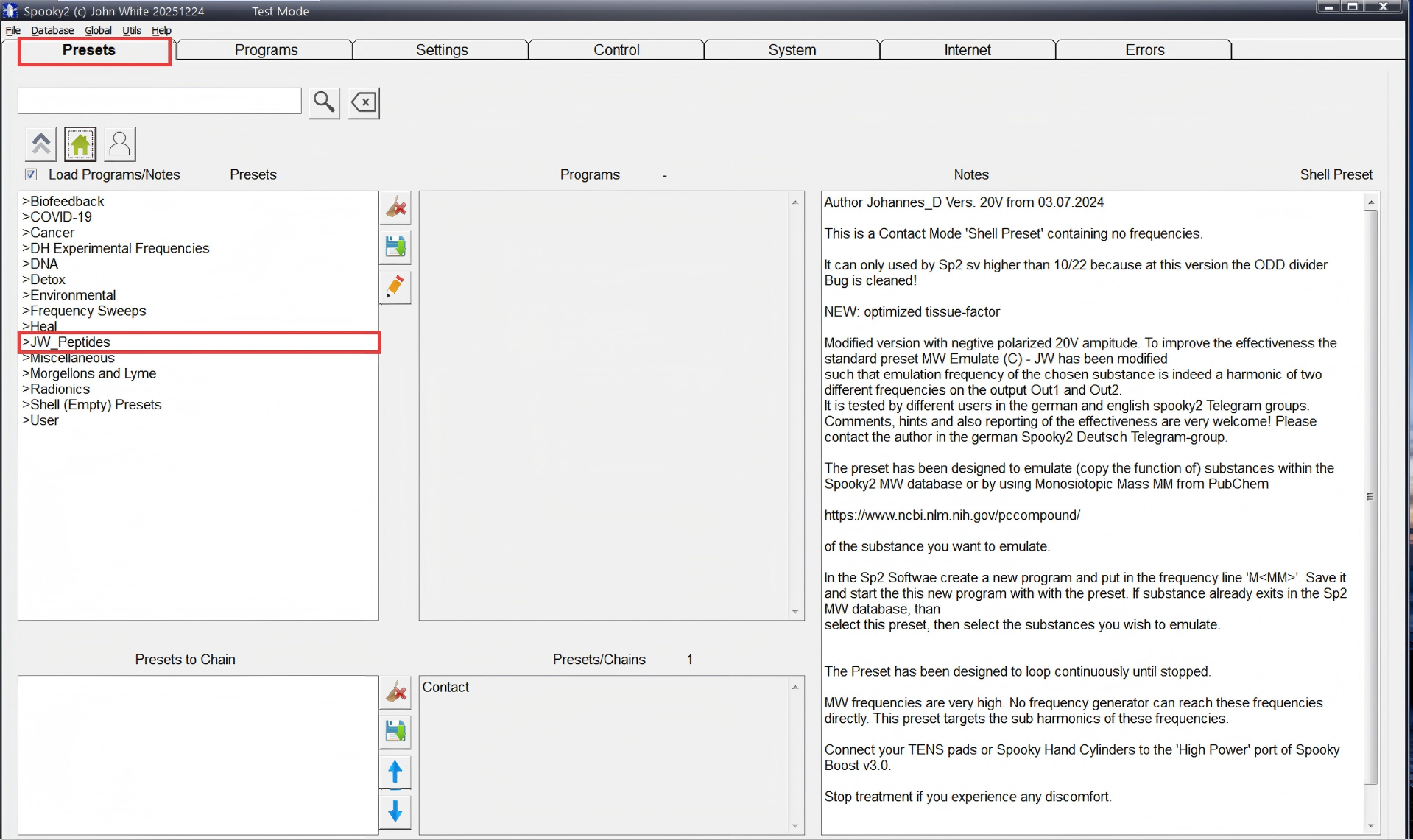
1. Select JW_Peptides
In the Spooky2 software, navigate to the PRESETS tab, choose JW_Peptides from the
2. Choose your Mode
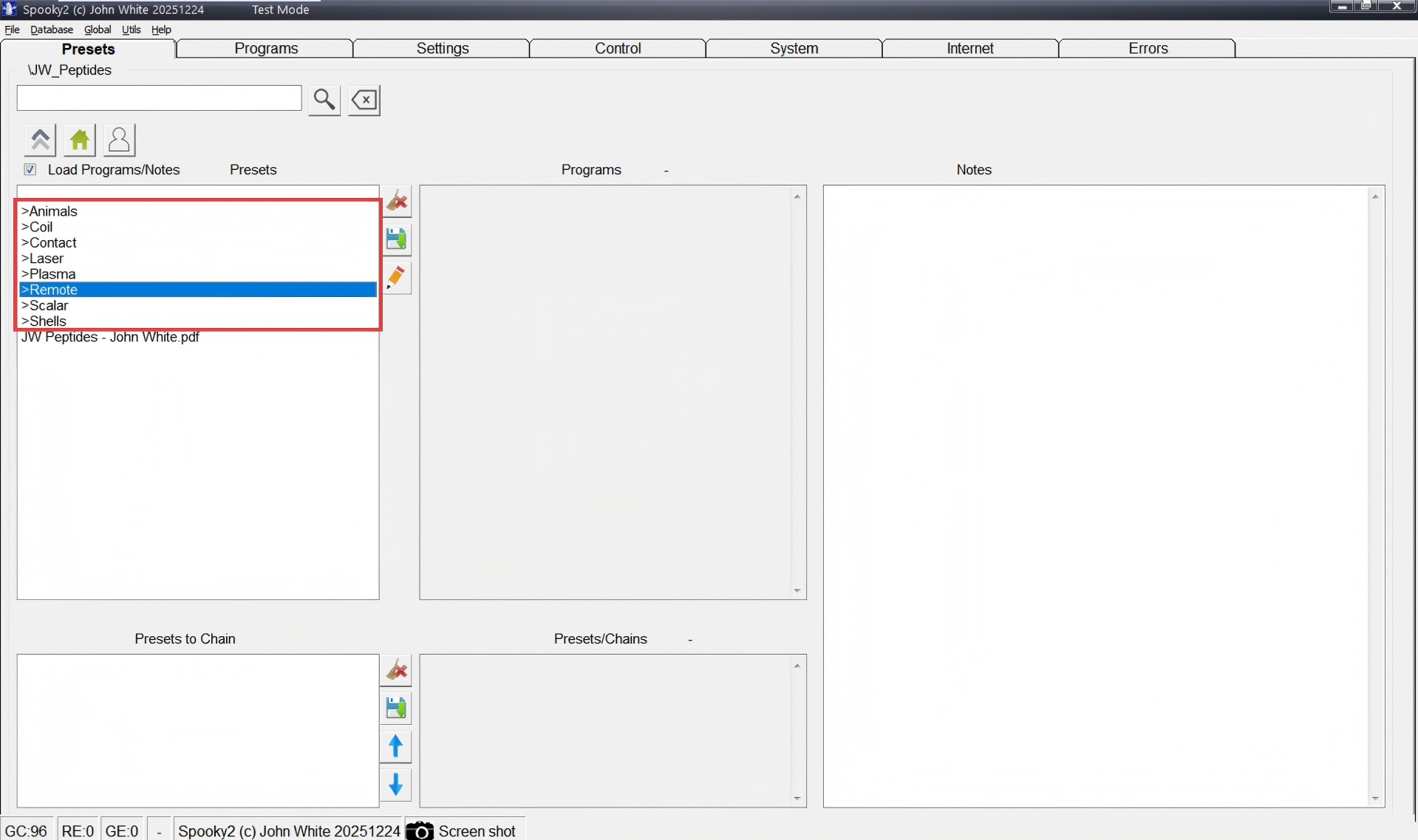
Select the mode you want to use from the list below.
- Animals
- Coil
- Contact
- Laser
- Plasma
- Remote
- Scalar
- Shells
(Remote mode is selected as an example.)
3. Add the peptide presets
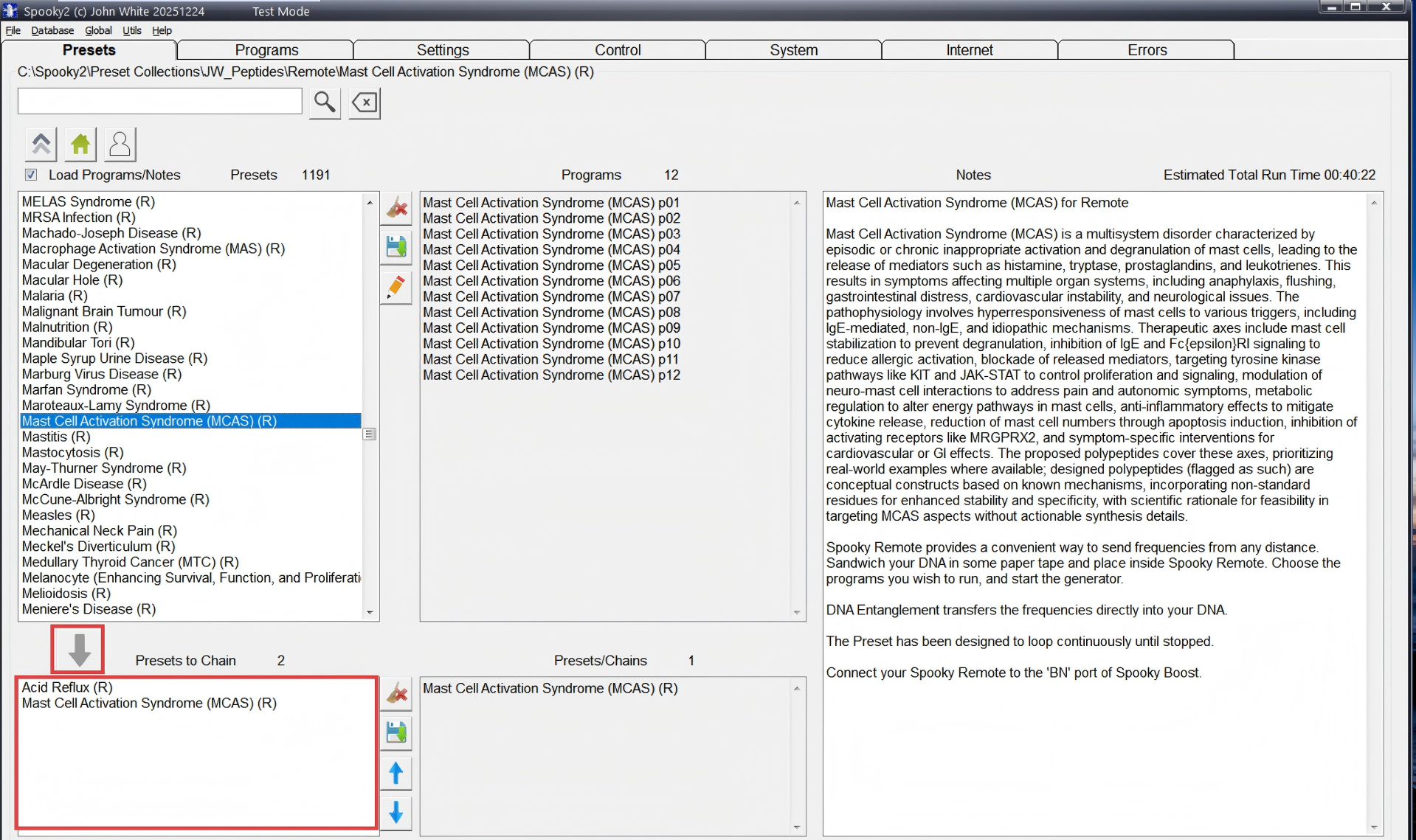
Click on a peptide preset and click the DOWN ARROW to load it into the “Presets to Chain” box. Repeat this step to add more presets.
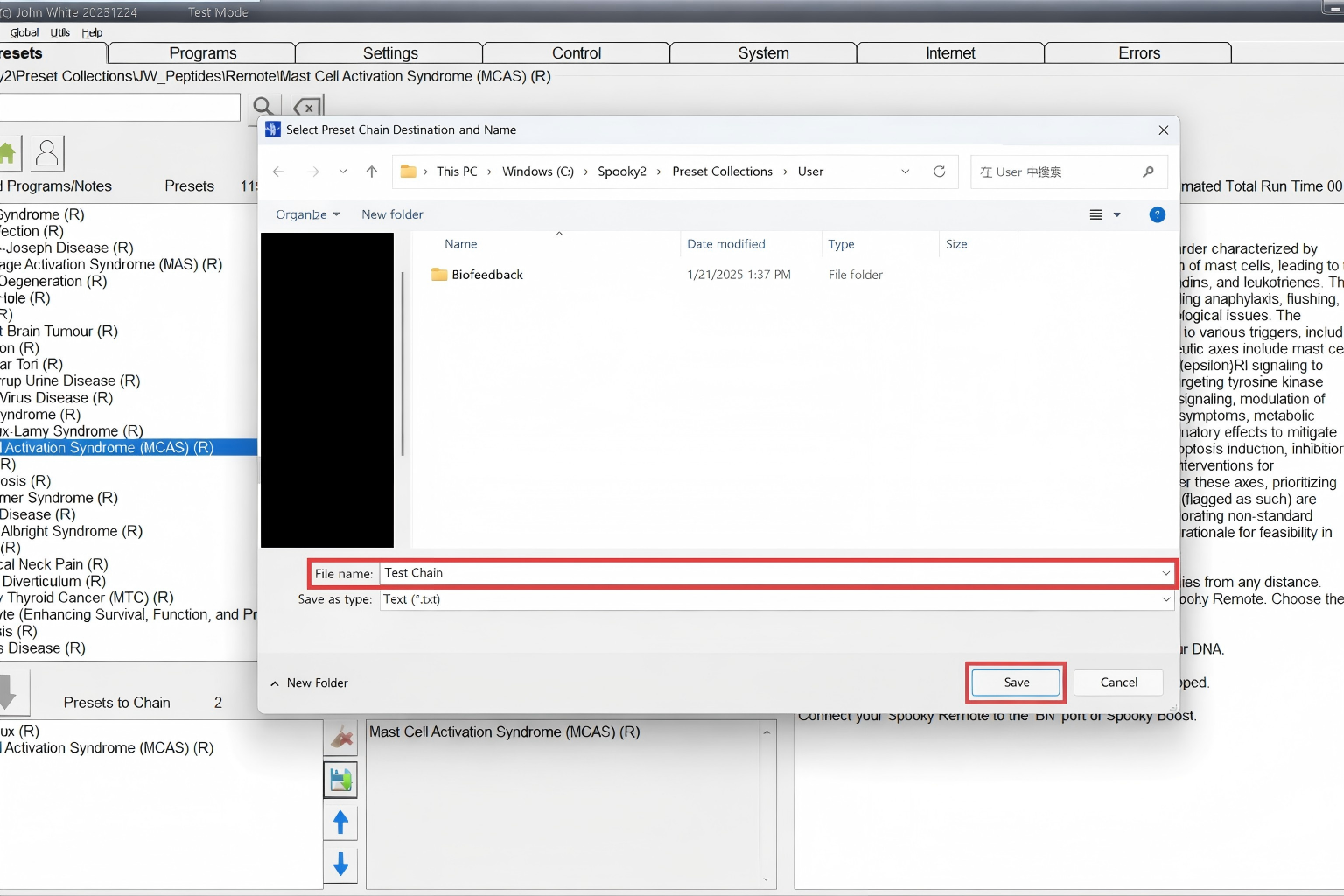
4. Save the preset chain
Click the SAVE icon on the right side of the “Presets to Chain” box.
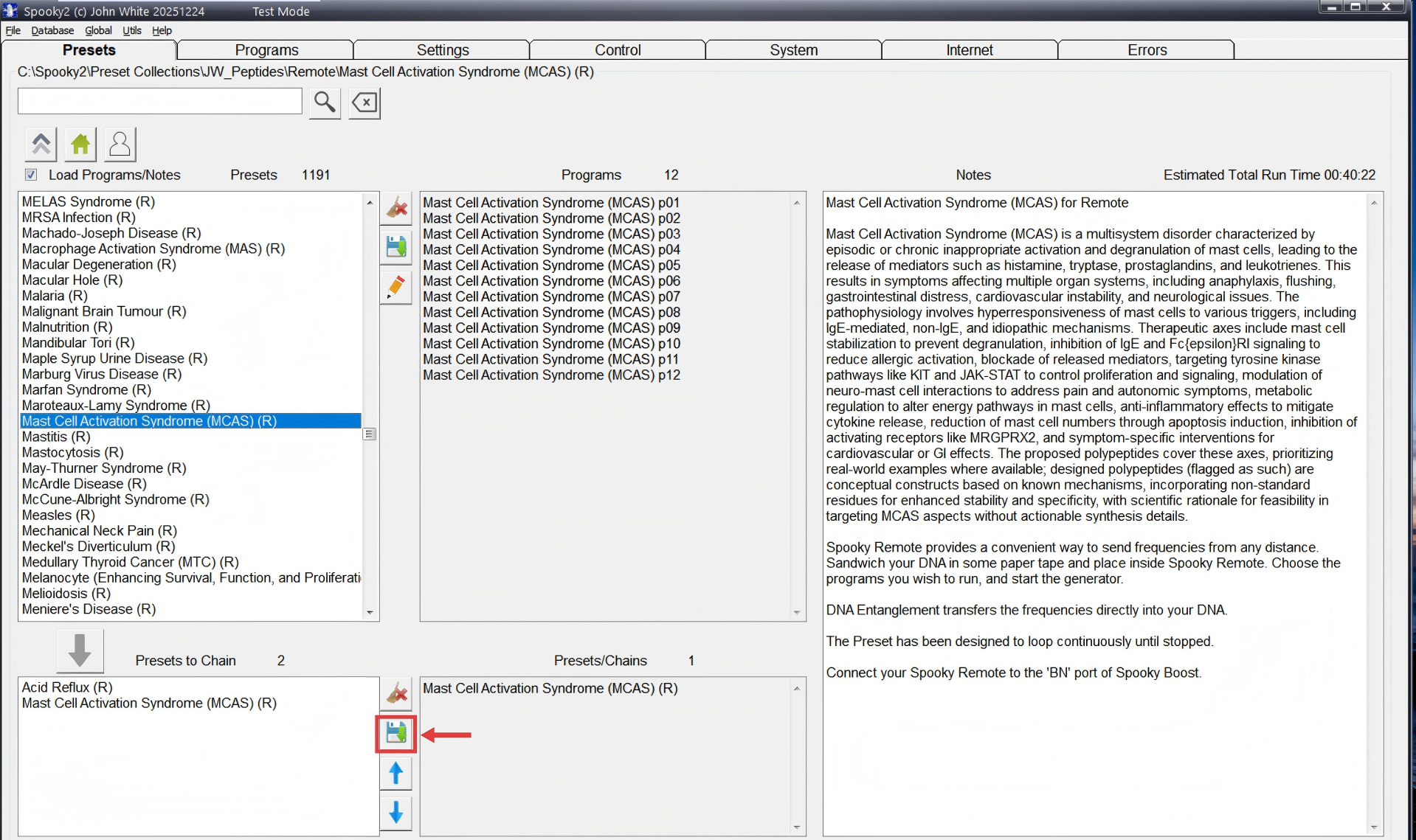
Name your chain clearly to make it easier to identify later.
5. Locate the saved chain
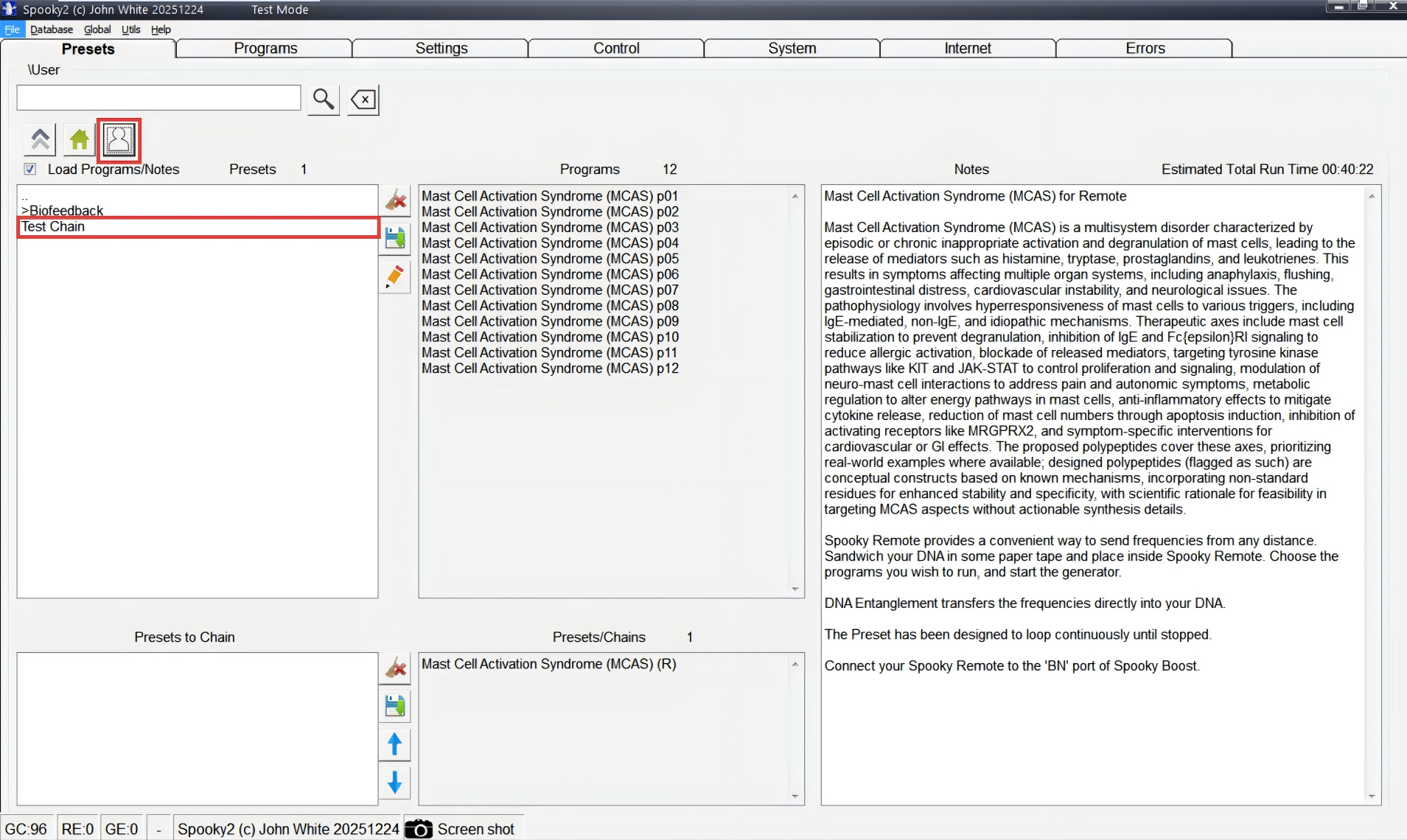
After saving, navigate to the USER folder and select the saved peptide chain.
6. Load and start the preset chain
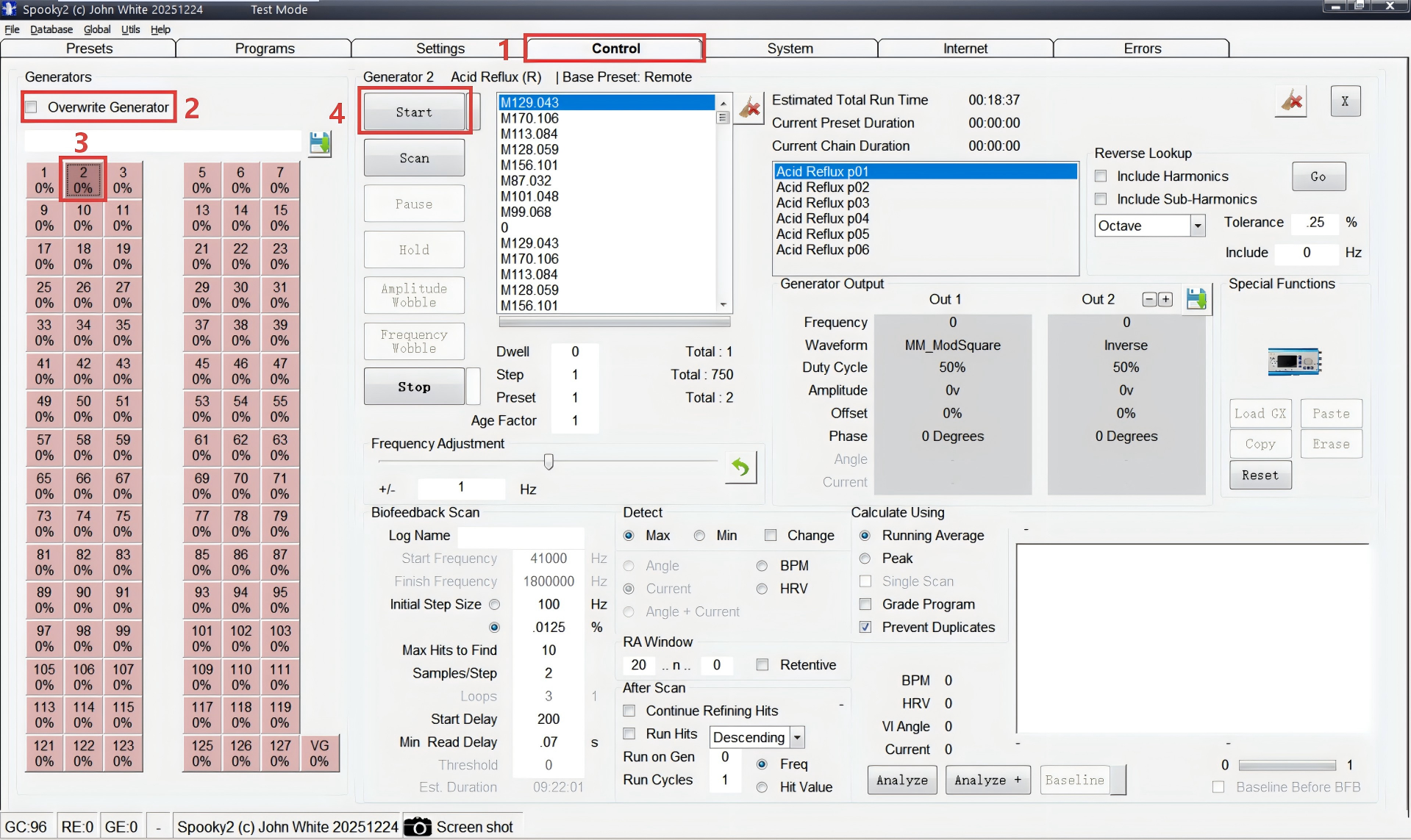
1) Navigate to CONTROL tab
2) Click “Overwrite Generator”
3) Load the program onto your chosen generator.
Note: This screenshot is from test mode, so multiple signal sources are shown. Once the device is properly connected, only the available signal sources will be displayed.
4) Click START to begin running the preset chain.
Q&A: Why Only One Preset Name Appears After Chaining?
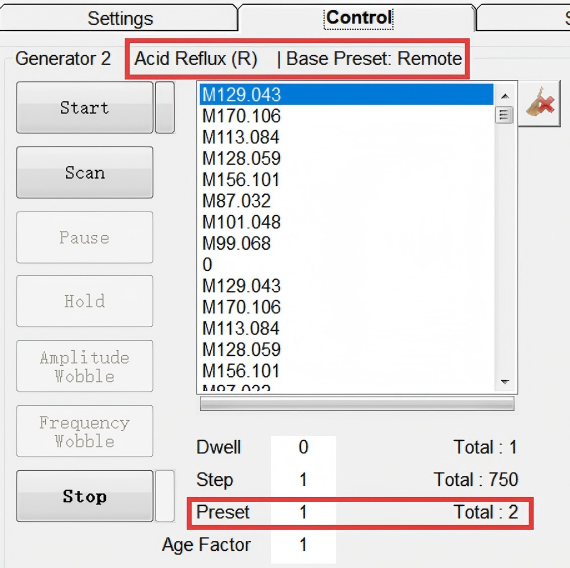
Only the first preset added to the chain will appear at the top. To confirm everything is running correctly, check the Preset# and Total# shown below—these indicate how many presets are in the chain (Total#) and which one is currently running (Preset#).
Demonstration – Chaining Peptide Presets
A more detailed walkthrough has been recorded by Spooky2 trainer, Michael Goss. We appreciate his contribution and invite you to watch the video below for more details.
Final Notes
To help users better understand and use JW Peptide Presets, we have already published a series of answers covering common peptide-related questions. If you have additional questions about peptide presets, we recommend visiting Frequently Asked Questions (Part 1 & Part 2) for more guidance.
If your question is still not addressed, please feel free to contact our customer support team. We are always happy to assist.