

The Spooky2 JW Peptide program library has continued to grow since its release in January 2026. With more than 2,500 peptide programs now available, finding the presets most relevant to your wellness goals can sometimes feel overwhelming.
In this article, we’ll explore different ways to search for peptide programs and share practical tips to help you find the programs you need more efficiently.
Searching Directly in the Software
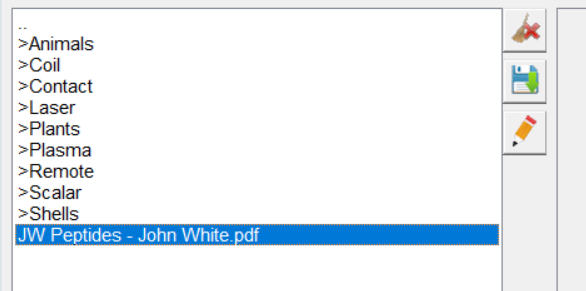
All JW Peptide programs can be found in the >JW_Peptides folder under the Presets tab. The programs are organized by delivery mode, with two additional categories dedicated to animals and plants.
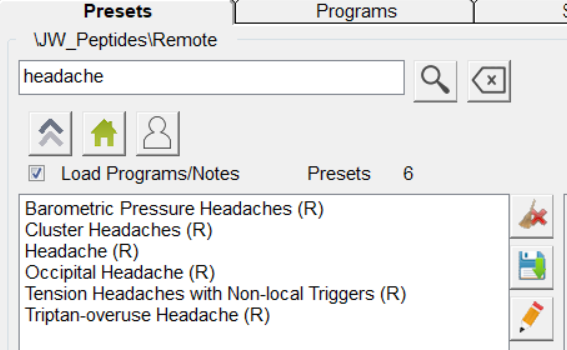
You can search directly within the folder that matches your preferred delivery mode. For example, if you want to find Remote mode peptide programs related to headaches, open the >Remote folder and search with the keyword “headache.” The search results will then display presets that include “headache” in their titles.
If you would like to learn more about a specific peptide program, you can also search for the program name in the JW Peptides – John White.pdf to view additional details.
However, this in-app search method only returns results that contain your keyword in the program title. This means you cannot search by a specific peptide name, a term or description that appears only in the program notes, or a particular frequency string.
To make searching more flexible and efficient, Spooky2 expert Bryan Yamamoto has developed a peptide search engine that allows users to search through the peptide program library directly in their browser.
Searching With Peptide Search Engine
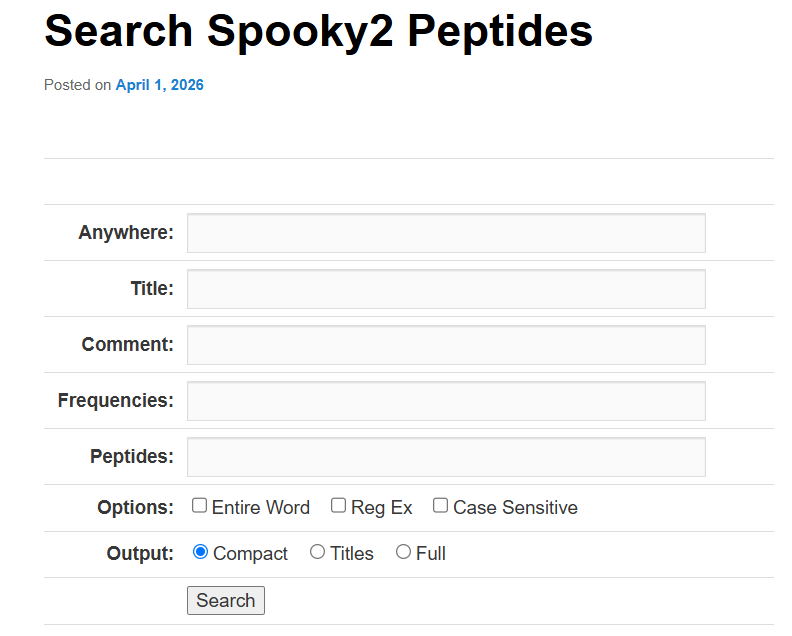
The Search Spooky2 Peptides search engine by Bryan Yamamoto allows you to search by keywords in the program title, comments (notes), and peptide lists, as well as use more advanced search options to narrow down your results. This tool is available on https://spooky2tools.com/cgi-bin/fixchain.cgi/fixchain/search.html.
Search Options
The most commonly used and broadest search option is the Anywhere field. It searches your keyword across all available program fields. For example, if you search for “headache,” the tool will return any entries containing that term in the program title, comments, or peptide descriptions.
However, the Anywhere option may sometimes return too many results. To narrow your search, use the Title field to search program titles only, or the Comment field to search within the comments or notes associated with each program.
The Peptides field allows you to search within the peptide list of each program. This option is particularly useful if you want to find programs that contain specific peptides you are interested in, such as BPC-157 or GHK-Cu.
The Options section helps you further refine your search. The Entire Word option limits results to entries that match the complete word you entered. For example, if you search for “liver” with Entire Word enabled, the results will include matches for “liver” while excluding words that only contain those letters, such as “deliver.”
The Case Sensitive option takes the letter case of your search term into account, distinguishing between uppercase and lowercase letters. This can be useful when searching for abbreviations such as MS or ADD, especially when you want to exclude unrelated results that use the same letters in a different case.
The Reg Ex option supports more advanced pattern matching using Perl regular expressions, giving experienced users greater control over how search terms are matched.
The Output options determine how your search results are displayed. Compact mode shows only the lines within each program that match your search terms. Titles mode displays only the titles of matching peptide programs, while Full mode shows the complete contents of each matching program.
Advanced Search
You can also combine multiple search fields by entering terms into more than one text field. The search results must satisfy all of the conditions you enter. For example, if you enter “balance” in the Title field and “GLP-1” in the Peptides field, the results will include only programs that have “balance” in the title and “GLP-1” in the peptide list.
For more advanced searches, you can also use several search operators:
- AND (&&): Requires both terms to appear. For example, searching for “upper back” looks for that exact phrase, while “upper&&back” returns programs that contain both “upper” and “back,” even if they do not appear together.
- OR (||): Returns results containing either term. For example, “upper||back” will return programs that contain “upper,” “back,” or both.
- NOT (!): Excludes results containing a specific term or phrase. For example, “!upper back” excludes programs that contain the phrase “upper back.” You can also use “upper&&!back” to find programs that contain “upper” but do not contain “back.”
For more detailed explanations and additional search rules, you can refer to this page for further explanation: https://spooky2tools.com/search-spooky2-peptides/