


Stepping into the world of Spooky2 can feel like learning a new language. However, rifing with Spooky2 is simpler than you think. By following the steps below, you can focus on what truly matters: your personal resonance and long-term vitality. Before we start, make sure you get both your hardware and software ready.
Information on Spooky2 hardware here: https://www.spooky2-mall.com/blog/spooky2-for-beginners-what-do-i-need-to-get-started/
And you can download our latest software and database here: https://www.spooky2.com/downloadspage/
Step 1: Select Your Preset
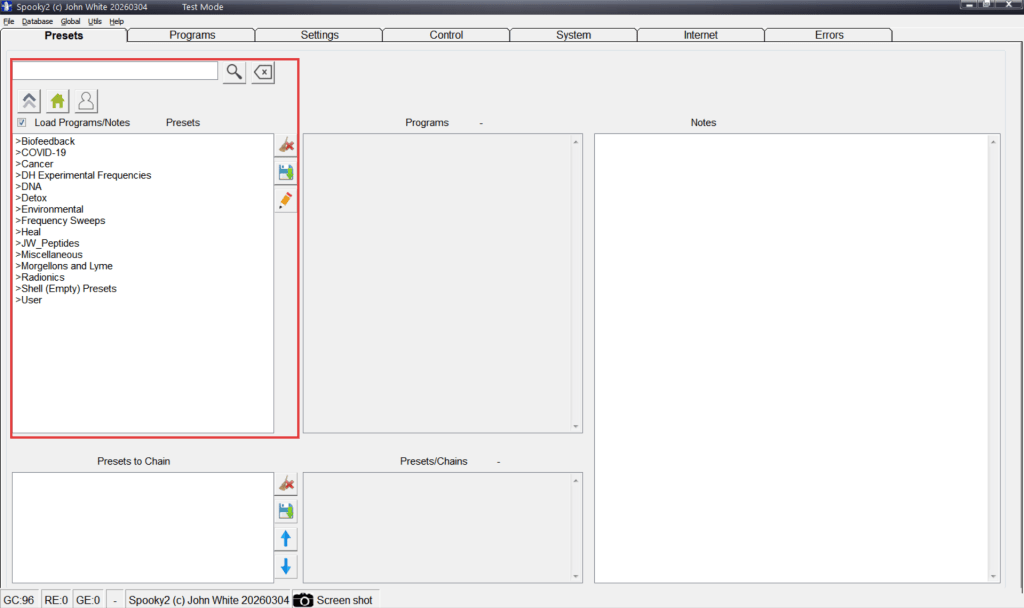
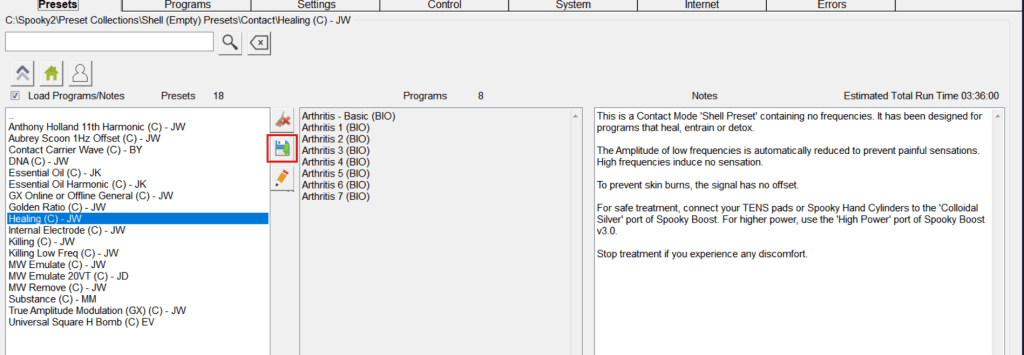
This is what you see when you open your Spooky2 software. On the left of the screen, you will see a list of presets. Presets contain all the information needed to run your programs. The presets are held in the drill-down menu under the Presets tab. Choose the category which meets your health needs, then double click on the preset you wish to use. You can also search with concerning keywords directly. (Instructions on how to search with keywords: https://www.spooky2-mall.com/blog/how-to-choose-keywords-when-searching-in-spooky2-software/) On the first day of 2026, Spooky2 launched the breakthrough Peptide library, powering high-accuracy and well-targeted treatment. Make sure you read the notes on the right of the screen before you run your presets.
Note: The preset type is in brackets. (R) means the preset is for remote use. (P) means the preset is designed for use in Spooky Plasma. (C) presets are for contact use.
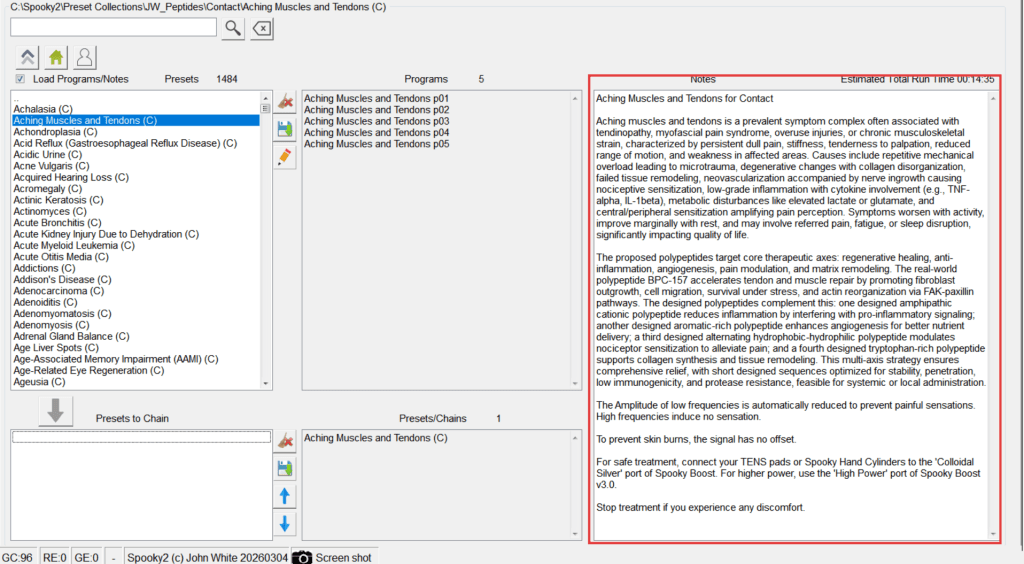
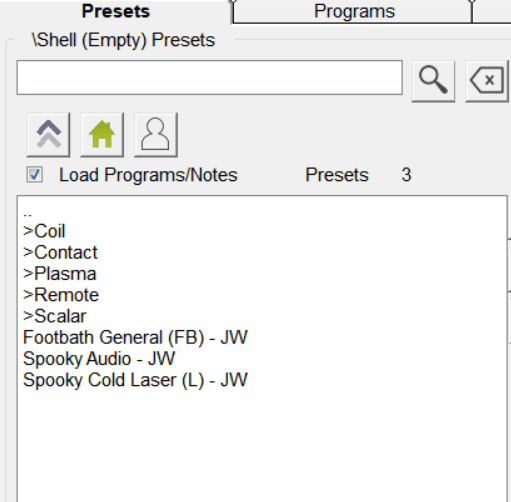
Most presets have programs pre-loaded, in which case you can directly skip to Step 3. However, some presets are empty. Shell will be displayed, indicating that programs need to be manually added.
Step 2: Add Your Programs (Optional)
If you wish to create your own preset with certain frequencies you would like to apply, you’ll need a shell preset. Shell presets have already been set up for different treatment needs but do not have any frequency programs. You can find available shell presets under the Presets tab. Double click to load the shell preset first, then go to the Programs tab and find your programs.
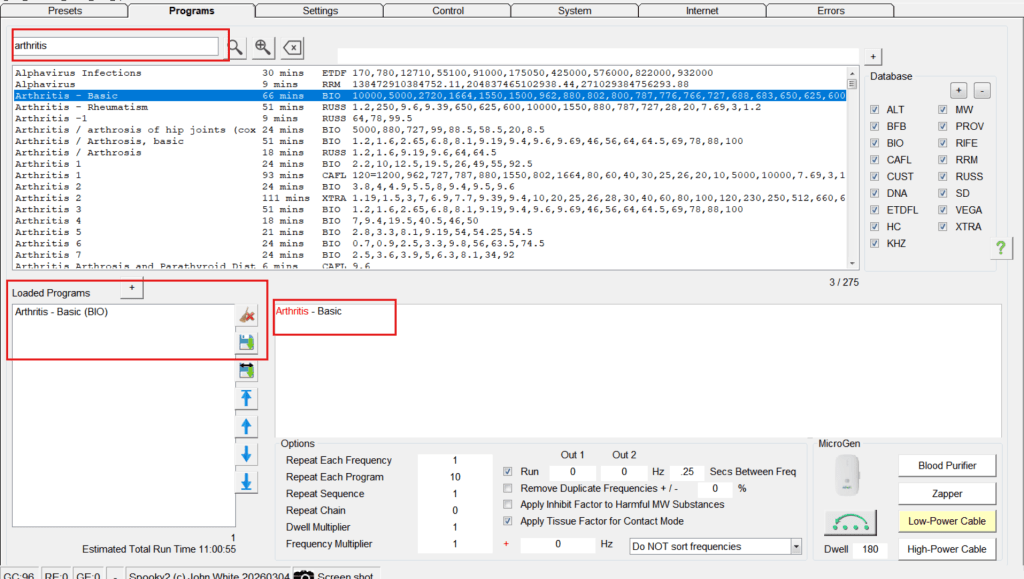
To manually add programs, search for the condition or treatment type in the search box under the Programs tab, and you’ll see a list of relevant frequency programs. Double click on the programs you wish to add to the preset. Loaded programs will appear in the Loaded Programs list. You can also see a brief note of the program on the right of the Loaded Programs box.
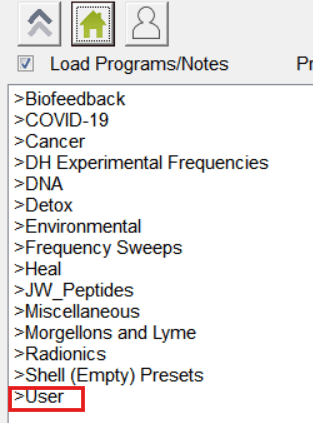
If you wish to save your preset for further treatment, go back to the Presets tab and click on the save button next to the presets list. Name your preset and find it later under >User.
Step 3: Run Your Programs
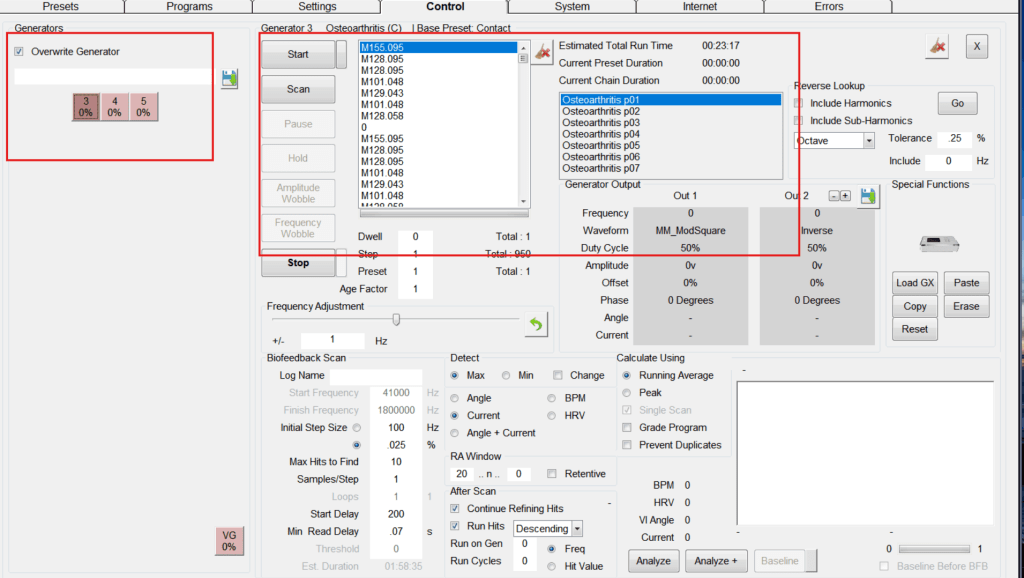
Go to the Control tab. Tick the Overwrite Generator box and click on the port you would like to use. Now you should see your preset and a list of frequencies on the right, meaning that your preset is successfully loaded into your generator. Press the Start button to start receiving healing frequencies.
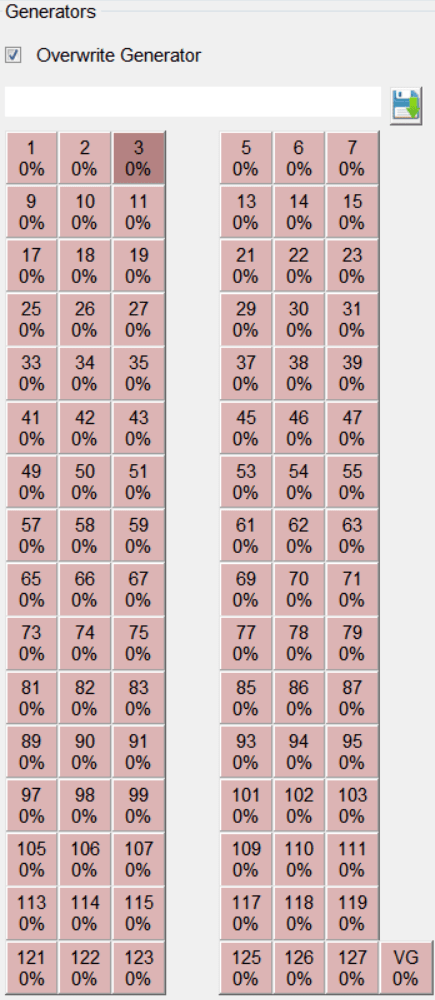
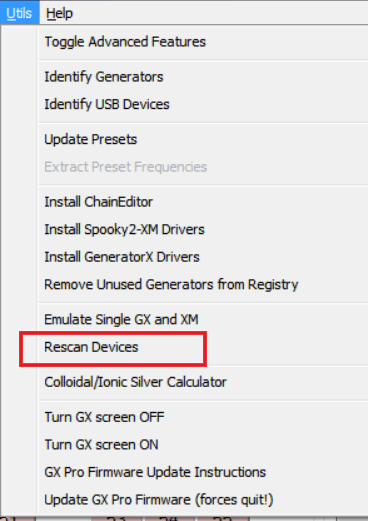
Tip: If you get all your devices and accessories connected properly, but still see a long list of ports in red, it means that the software hasn’t recognized your devices yet. Go to Utils and click on Rescan Devices. A list of available generator ports will appear on the left of your screen.
Step 4: Enjoy Your Rifing Journey
Now that your session is running, the real journey begins. As you settle into your routine, it can be really helpful to keep a simple journal of your progress, so that you can fine-tune your frequency selections over time. More about understanding your body reactions here: https://www.spooky2-mall.com/blog/how-to-recognize-spooky2s-effects-on-your-body/
While this guide covers the essentials to get you started, the Spooky2 Software is a powerhouse with many advanced features designed to further personalize your wellness journey. For more detailed instructions and deep dives into specific protocols, feel free to explore our previous blog posts. If you ever feel stuck, Spooky2 Support https://www.spooky2support.com/ is always here for you.
Most importantly, don’t forget to join our community discussions on Facebook; sharing experiences with fellow users is one of the best ways to learn and grow as you master the art of rifing.

will Spooky treat Prostate Cancer and how ??? Frequency ? Pulses ?
Hi! You can find relevant frequency presets under the Presets tab. You can also refer to our cancer protocol in Presets>Cancer>DB>GUIDE Cancer DB – Click Me.pdf.
Thanks for that a nice quick reminder easy to follow 👍