


Our previous blog posts introduced basic Spooky2 biofeedback scanning methods (Pulse scan, TENS scan, Sample Digitizer scan and Scalar Digitizer scan). These scanning methods help identify frequency “hits”, which you can save and run for customized, targeted support. In this article, we will introduce another approach to fine-tuning your treatment, powered by Grade Scan and Refine Programs.
Understanding Grade Scan & Refine Programs
Both Grade Scan and Refine Programs are shell presets. They allow users to test the effectiveness of frequencies against individual conditions and fine-tune their frequency choices. Grade Scan and Refine Programs are compatible with both Spooky2 XM Generator and GeneratorX Pro.
Hardware and software setups for Grade Scan and Refine Programs are similar to basic BFB scans. For GeneratorX Pro, the program scope should focus specifically on pathogens or pathogenic conditions. The duration of the scan depends on your program selection and your choice of mode.
Grade Scan
This preset allows you to choose and load the programs you wish to test. It quickly evaluates the frequencies of multiple programs you load and ranks them based on how your body responds. It helps you identify which frequencies in various programs are most effective for your condition. You can then focus on running only those top frequencies. Grade Scan is useful for helping you sort and select frequencies from a large set. You can save the results as they are to your database, or use the checkboxes to omit the frequencies your body has the least response to.
For example, there are many programs for cold and you don’t know which program to choose, or which frequencies are most effective for your condition. You can load them all to the Grade Scan preset, and let it grade the effectiveness of the frequencies. For step-by-step instructions and how to interpret the grading values, please refer to this.
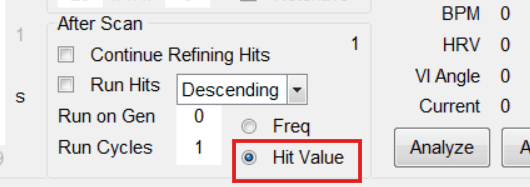
To have the scan results displayed in the order of the hit values, make sure you select the “Hit Value” option in the After Scan section of the Control panel before you hit the Scan button.
Refine Programs
Refine Programs (or Optimise Scan Shell for Pulse scan) allows you to choose and load the programs you would like to refine. It takes the frequencies you already have (for example, from a Grade Scan) and fine-tunes each frequency by sweeping slightly above and below it to find the exact frequency that elicits the strongest reaction from your body. The preset refines the frequencies to five decimal places.
For example, if you would like to refine the program Pneumonia (ETDF), you can first choose the Refine Programs preset

Then choose Pneumonia (ETDF) from the main database
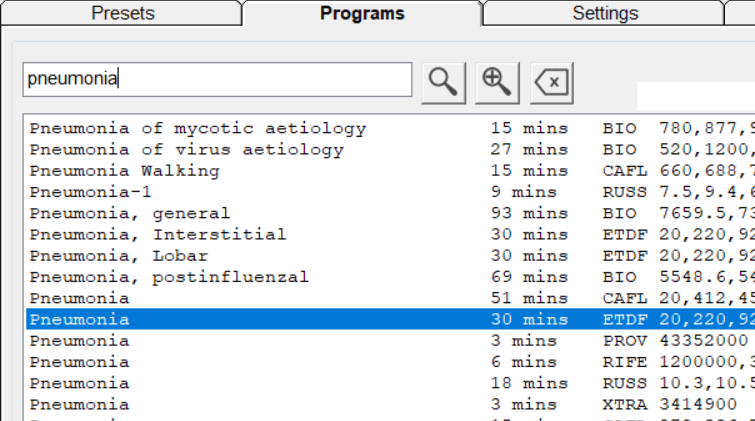
Then you load the preset to the generator and hit the Scan button in the Control panel to start the process. The refined results will be displayed in a pop-up window after the scan, which you can then save for later use.

Grade Scan + Refine Programs for Higher Precision
You can combine the two scans to build a customized program that resonanates best with your body. We recommend the below workflow:
- Run a Grade Scan on your selected programs. You can include as many programs as you prefer.
- Select the top frequencies you would like to use from the Grade Scan results and save them to your BFB database.
- Run a Refine Programs scan on the Grade Scan results you have just saved to further fine-tune the frequencies.
- Save the Refine Programs scan results for your future treatment.
Unlock More Potentials of Spooky2 BFB Scans
Spooky2 trainer Nick Dewey recently hosted a training session on Spooky2 biofeedback scans for advanced users. Watch the replay below:
