


Spooky2 offers many methods to do Biofeedback Scans. Each mode works differently to find the frequencies your body needs. In this blog, we will tell you how to do an optimized scan, which allows you to optimize any database or third-party program to achieve more precise frequencies, making it more effective for your condition.
What Is an Optimized Scan?
An optimized scan provides a way to rectify frequency by inputting each frequency in turn and methodically sweeping above and below to identify the exact value that provokes the strongest reaction in your body, then recording these values.
If the frequency you input is 100hz, the frequency in the scan results would be accurate to 2DP, like 100.59hz. These precise frequencies, closer to the fundamental MORs, are more likely to eliminate harmful pathogens in your body.
Note that the optimized scan does not work with healing, support, or detox programs because those use frequencies for entrainment (healing), not killing.
How to Do an Optimized Scan?
Both XM Generator and GeneratorX/GeneratorX Pro can perform an optimized scan. We will take GeneratorX Pro as an example, which is faster and easier to set up.
Hardware Connection:
Spooky2 GeneratorX Pro
Spooky2 TENS Pads
(You can use Spooky2 Boost with this scan, though the signal is purer if the TENS pads are connected directly to the generator output port.)
Software Operation:
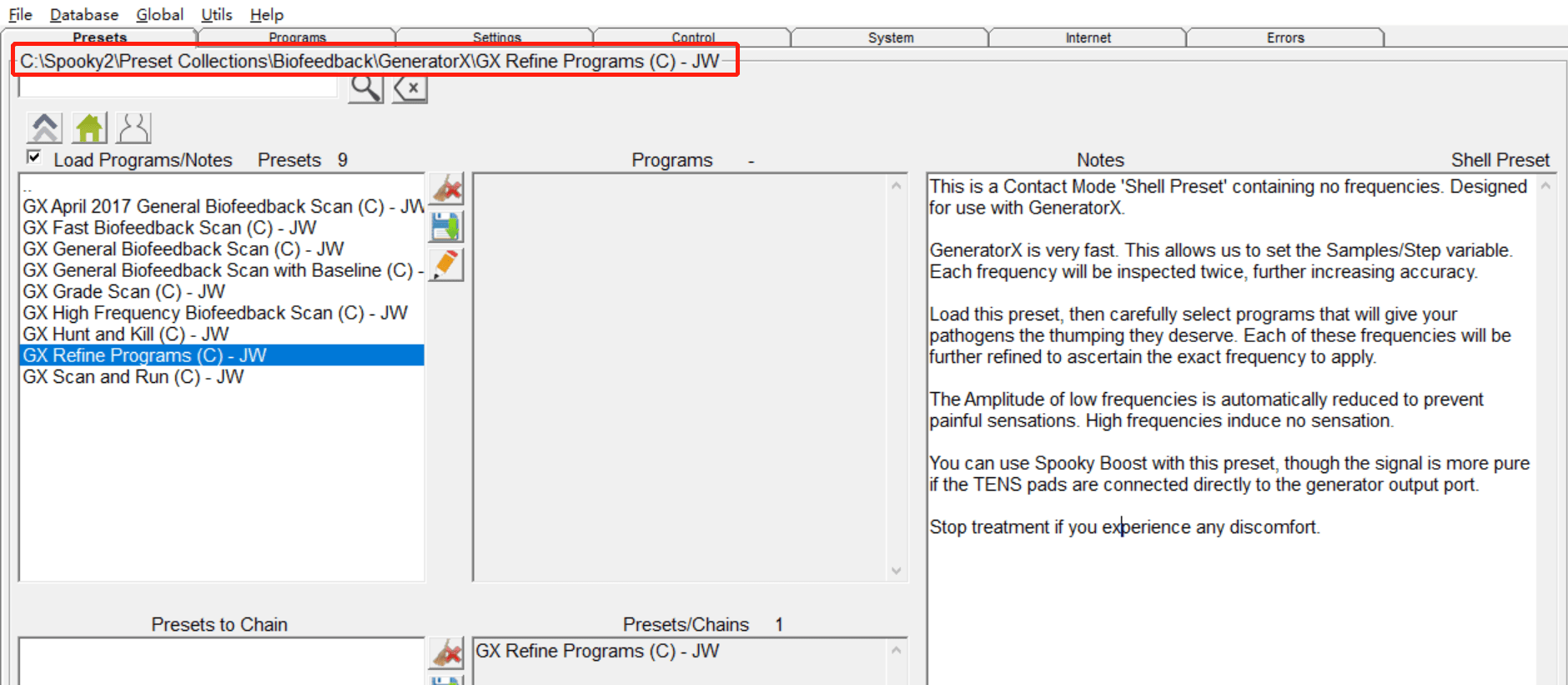
1.Launch Spooky2 software. Go to the Presets tab, and click Biofeedback /GeneratorX /GX Refine Programs (C) – JW.
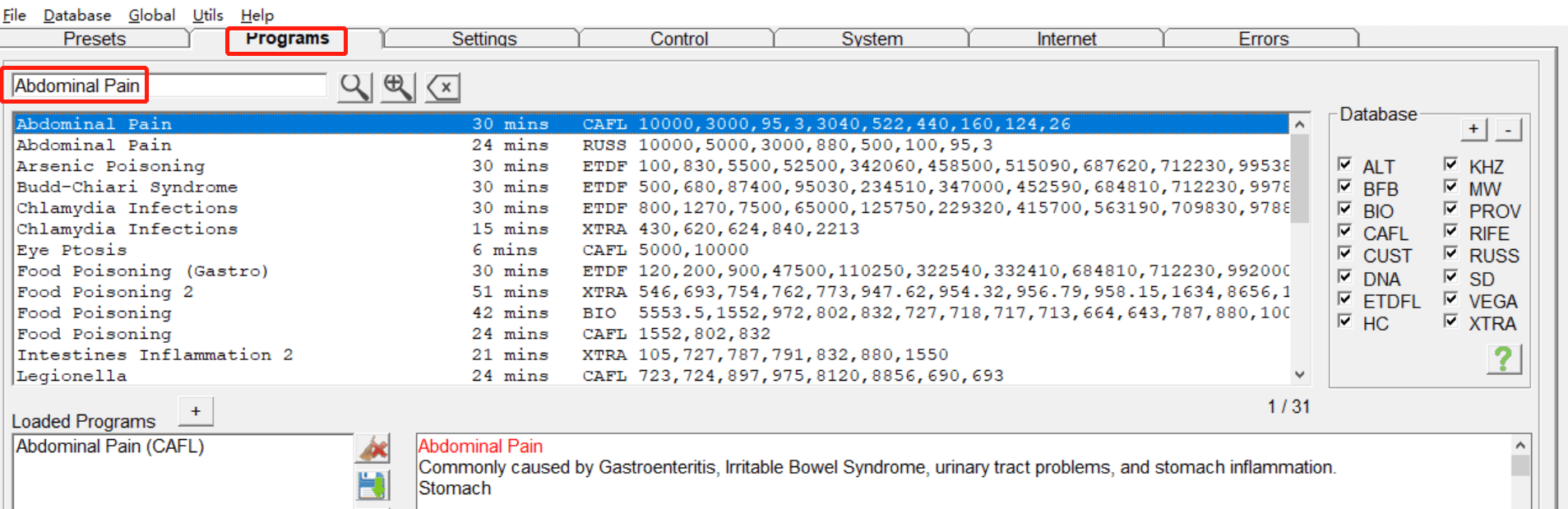
2.Go to the Programs tab and choose the program you want to refine. Take the “Abdominal Pain” program as an example.
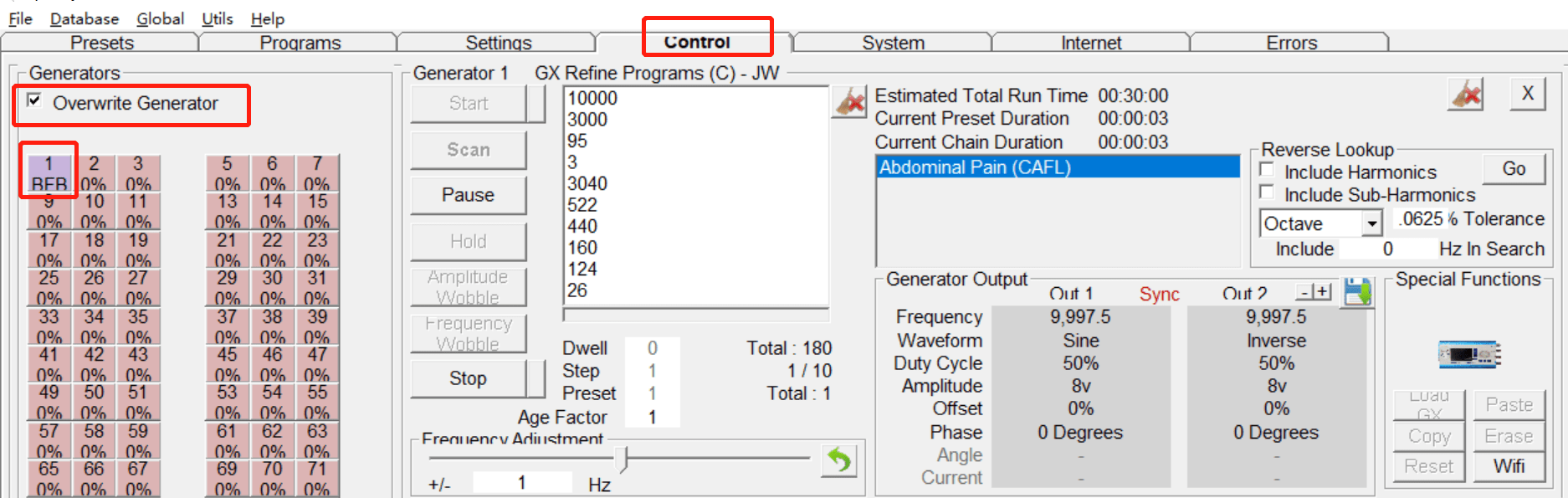
3.Go to the Control tab, tick “Overwrite Generator,” and click the generator port. Then click the “scan” button to begin. The color of the port button will turn purple when the scan starts.
4. Save and run your scan results.
You can learn more details about how to do an optimized scan with the GeneratorX/GeneratorX Pro from this video:
What Is the Difference Between a Grade Scan and an Optimized Scan?
Grade Scan: it does a quick biofeedback using the frequencies of the programs you load and reorders them from strongest to weakest “hits” in how they affect your body. For example, there are many programs for cold, and you don’t know which program to choose. You can load them all to the grade scan preset to identify the most suitable frequencies for you. The most helpful frequencies are at the top of the list.
Optimized scan: it will rectify each frequency and methodically sweep above and below to pinpoint the exact value that elicits the strongest reaction from your body. For example, if your program initially included frequencies of 100, 200, 300, and 400, the results after the scan might be 100.039, 199.991, 301.233, 402.087. This more specific and refined scan result increases the likelihood of pathogen elimination.
Should I Run a Grade Scan or an Optimized Scan First?
We recommend running the grade scan first and then optimizing the scan results. That way, you will have the most suitable frequencies and then optimize only those rather than optimizing many less effective frequencies before sorting.
In conclusion, the optimized scan can determine more precise frequencies, increasing the likelihood of eradicating pathogens and enhancing treatment effectiveness. If you are interested in trying the optimized scan, welcome to check out the Spooky2 GX Pro Essential Kit to make the most of the Spooky2 system.

“Should I Run a Grade Scan or an Optimized Scan First?”
Zuerst Grade Scan, dann Refine Programm.
Aber im Video wird gezeigt nur Refine Programm.
So sollte man es NICHT machen…(?)
Hallo Manja, hier ist ein Artikel darüber, wie man einen Notenscan durchführt. https://www.spooky2-mall.com/blog/how-to-do-a-grade-scan/ Ich hoffe, es hilft.