

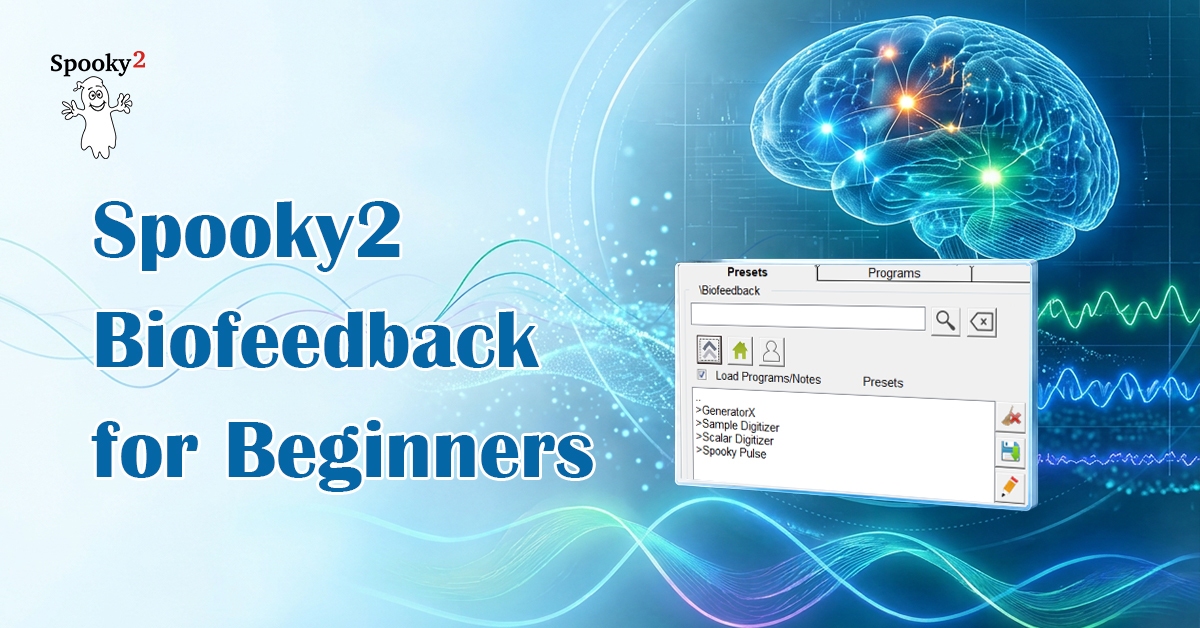
Spooky2 biofeedback offers a unique way of “listening” to your body by exploring which frequencies best resonate with you. The frequency results, known as “hits,” can help you build a more personalized protocol. If you’re new to Spooky2, this guide will walk you through the basic steps of setting up and running your first biofeedback scan.
What Does Spooky2 Biofeedback Do and Not Do?
- Scans a range of frequencies using different biofeedback modes, including Pulse, TENS, Sample Digitizer, and Scalar Digitizer.
- Measures responses to different frequencies, with readings such as heart rate, angle, and/or current, depending on the scan mode.
- Identifies the top frequency “hits” associated with the strongest measured responses.
- Allows you to name and save your scan results to help build a personalized protocol.
- Does NOT identify specific pathogens or provide medical diagnoses.
Basic Biofeedback Options at a Glance
| Pulse Scan | TENS Scan | Sample Digitizer Scan | Scalar Digitizer Scan | |
|---|---|---|---|---|
| Hardware Requirements | 1 × XM Pro Generator 1 × Spooky2 Pulse (finger or ear clip) 1 × Spooky2 Boost 1 × set of TENS cables and pads | 1 × Spooky2 GeneratorX Pro 1 × set of TENS cables and pads | 1 × Spooky2 GeneratorX Pro 1 × Spooky2 Sample Digitizer Fresh biological sample | 1 × Spooky2 GeneratorX Pro 1 × Spooky2 Scalar set 1 × Scalar Digitizer 2 × BNC cables |
| Basic Scan Preset | General Purpose Full System Scan | GX General Biofeedback Scan | General Biofeedback Scan (SD) | Spooky2 Scalar Digitizer Master (GX) & Spooky2 Scalar Digitizer Slave (GX) |
| Duration | 1 hour | 20 minutes | 40 minutes | 5–10 minutes |
| Relevant Blog | Pulse Scan Guide | TENS Scan Guide | Sample Digitizer Scan Guide | Scalar Digitizer Scan Guide |
Simple Steps to Start Your First Biofeedback Scan
For beginners, Pulse scan and TENS scan are two common starting points. Here are the steps to help you get started.
Pulse Scan
- Connect the Spooky2 XM Pro Generator to the computer’s USB port.
- Connect Spooky2 Boost to the generator.
- Connect the TENS cable to the High Power port on the Boost and attach the TENS pads to your right wrist and left ankle.
- Connect the Spooky2 Pulse to the computer’s USB port (Do NOT use a USB hub) and attach it to your finger or earlobe.
- Turn on the generator and launch the Spooky2 Software.
- Go to the Presets tab. Select >Biofeedback>Spooky Pulse>General>General Purpose Full System Scan.
- Go to the Control tab. Tick Overwrite Generator. Choose the corresponding port number to load the preset. Click on Scan to start.
- When the scan completes, your scan results will pop out in a new window. You can save the results and run them afterwards.
TENS Scan
- Connect the TENS cable directly to the OUT1 port of G1 or G2.
- Apply the TENS pads to the area you would like to scan. For a general BFB scan, place the TENS pads on either side of your torso. For a localized scan, place the TENS pads as close to the area as possible and make sure that the current can flow through the area.
- Connect the GeneratorX Pro to the computer’s USB port.
- Turn on the generator and launch the Spooky2 Software.
- Go to the Presets tab. Select >Biofeedback>GeneratorX>GX General Biofeedback Scan (C) – JW.
- Go to the Control tab. Tick Overwrite Generator. Choose the corresponding port number to load the preset. Click on Scan to start.
- When the scan completes, your scan results will pop out in a new window. You can save the results and run them afterwards.
How to Use Your Scan Results
Once saved, your scan results will appear as a program in the BFB collection in the database under the Programs tab.
To run this BFB program, follow these steps:
- Go to the Presets tab and select a shell preset that matches your intended application mode. For example, Killing (R) – JW.
- Go to the Programs tab and select the scan results program you want to run.
- Go to the Control tab. Tick Overwrite Generator, then load the program onto the generator you want to use. Click Start to begin your session.
For more detailed explanations, please refer to this blog.

I am starting three people through remote with fingernail DNA from each of the three doing the 11 day Terrain. Can I begin the Baseline and BioFeedback for each by pausing the Terrain then after each is done resume the Terrain?
Thank you for your question.
Yes, you can start the Baseline and Biofeedback scans for each person by pausing the Terrain program. After completing the Baseline and Biofeedback for each individual, you can resume the Terrain program. This approach allows you to manage multiple scans efficiently while continuing the Terrain protocol.
If you have any more questions or need further assistance, feel free to ask!
I am using GEN.X remote for chlesterol level ,averting sims working good, but there are no lights or flickering lights on remote. How I know that the remote is working. When I using remote an 2 channel signal generator, lights on remote are always on or flickering.
Thank you for your question.
When using the GeneratorX Remote, it’s normal for the lights on the Remote to not flicker or light up as much, especially with certain programs like the one for cholesterol. The lights on the Remote are not always a reliable indicator of function. The GeneratorX operates at a higher speed, so the lack of flickering doesn’t necessarily mean the Remote isn’t working.
To confirm that the Remote is functioning, ensure that:
The generator is running the program correctly.
The connections are secure.
You see the progress in the software, which indicates the program is active.
If everything is running smoothly in the software, the Remote is likely working as intended.
If you have further questions, feel free to ask!
Lade das Preset unter Miscellaneous und dann Generator Signal Test (R) JW in den Generator. Wenn die LEDs leuchten ist alles ok. Bei sehr hohe Frequenzen können die LEDs nicht leuchten, das ist normal.
Hi there, I just performed our first ever GenX BioFeedback scan via Baseline. We followed the step by step guidance as per videos and the Biofeedback for beginners here. It took 20 mins pretty much as expected. LOTS of hits, but it brought up no results. Any ideas are most welcome, please. I took a screen shot but i cannot paste it here. I have put it into Spooky2 Facebook, but my post is pending still. Thank you.
Thank you for reaching out, and congratulations on completing your first Biofeedback scan! It’s great to hear that you followed the step-by-step guide. If no results were shown despite having lots of hits, there are a few things you can check:
Check Your Generator’s Settings: Ensure that your GenX generator is properly connected and configured. Sometimes, incorrect settings can lead to incomplete results. You can try rerunning the scan and double-check all settings, especially those related to signal transmission.
Review the Data: It’s possible that the hits were detected, but the results were not displayed due to a glitch or software delay. Try reviewing the Biofeedback scan data directly by clicking on the “Biofeedback Results” tab in the software.
Software Update: Ensure your Spooky2 software is up-to-date. Updates often include bug fixes and improved functionality, which might resolve issues with displaying scan results.
Use Different Presets: If you’re still having trouble, try running another type of Biofeedback scan (e.g., a Grade Scan) to compare the results.
Since you’ve already posted in the Spooky2 Facebook group, you should get feedback from other users once your post is approved. In the meantime, feel free to ask here if you need more help!
Thank you for your reply. For others assistance:
We used the Baseline scan which we thought would also perform a normal scan after but it does not, hence no results. If we want to do the baseline first with the scan to auto follow, we need to tick the box next to that box. As these are the subject of continual development, the videos we watch are not always to be taken as step by step guides!
Thank you for your follow-up! You’re absolutely right—Baseline scans are a bit different as they don’t perform a regular scan afterward. To do both, you’ll need to tick the box that allows the normal scan to follow after the Baseline scan.
As you mentioned, Spooky2 software is constantly evolving, so videos and guides might not always reflect the latest updates. It’s always a good idea to stay updated with the latest software developments and check the settings carefully before each scan.
If you have any other questions or need further assistance, feel free to reach out!
When I go to start a Biofeedback scan I get a massage that tells me that I am in” test mode” and the results of my scan will be invalid.
How do I get out of “Test mode”
Thank you for your question!
The message you’re seeing about being in “Test Mode” typically indicates that the biofeedback scan is set to run in simulation mode, rather than performing a live scan. To resolve this and exit “Test Mode,” follow these steps:
Check your hardware connection: Ensure that all cables and equipment, including your generator and biofeedback accessories, are properly connected. Sometimes, the system might default to Test Mode if it doesn’t detect the hardware.
Exit Test Mode in the software: In the Spooky2 software, go to the Control tab and make sure you are connected to the correct generator. Click the generator number to ensure the software recognizes it.
Restart the software: If the above steps don’t work, try closing and reopening the Spooky2 software to reset the connection and settings.
These steps should help you get out of Test Mode and run a valid biofeedback scan. If you still encounter issues, feel free to reach out for further assistance.
On the Biofeedback one method listed is the Generator X with Sample digitizer. Could the remote be used instead?
Dear Viacheslav,
Thank you for reaching out!
The Sample Digitizer is designed for biofeedback scans with GeneratorX, allowing real-time analysis from a sample. Remote mode, however, is not suitable for performing biofeedback scans, as it does not provide the necessary biological feedback for accurate results.
If you’re interested in exploring effective biofeedback method, you may find scalar biofeedback scanning helpful. It offers a non-contact way to detect imbalances in the body. You can learn more about it in this blog: Unlock the Healing Power of Scalar Biofeedback Scanning for Better Health(https://www.spooky2-mall.com/blog/unlock-the-healing-power-of-scalar-biofeedback-scanning-for-better-health/).
Let us know if you have any questions!
Best regards,
Spooky2 Team
I have tried several times to do a Scalar biofeedback. Everything seems to be working, I can see the graphics changing and lights flashing at intermittant times but it does not stop even after 1 hour. Am I doing something wrong. Also I am not sure what to do with the report if and when I get one. I was using the Hunt and Kill because I have a bacterial infection at present.
Hi Tilly, thanks for your question! The Hunt and Kill preset doesn’t stop on its own—it runs continuously until no more hits are found or you manually stop it. So it’s completely normal for it to keep running even after an hour.
A few tips:
1. Be patient—this scan can take a while, especially for bacterial infections.
2. You can stop it manually if needed, but it’s best to let it run as long as possible for better results.
3. Make sure your software and device are up to date to avoid any issues.
Once the scan ends, you can go to the **Biofeedback Results** section in the software to view the detected frequencies. These are the ones you can run as a treatment set afterward.
Here’s a helpful guide on how to use the scan results:
👉 [What to Do with Spooky2 Biofeedback Scan Results](https://www.spooky2-mall.com/blog/what-to-do-with-spooky2-biofeedback-scan-results/)
And of course, if you need one-on-one help, feel free to email us at support@spooky2-mall.comanytime! 😊
I recently received the GenX and want to run a biofeedback scan. What does the scan actually do? If it doesn’t identify conditions that are not caused by harmful microorganisms – such as lack of vitamins, functions of organs – what exactly does it identify?
Hi, thank you for your question. The Spooky2 GenX biofeedback scan identifies frequencies associated with pathogens, such as viruses, bacteria, and other microorganisms. The scan helps you see which frequencies your body responds to, which you can then use to guide your frequency programs.
What about parasites? And how can I tell what the identified frequencies are for?
Hi, regarding parasites, the biofeedback scan can also detect frequencies related to common parasites, as they are treated like other pathogens in the system. While the scan shows which frequencies your body responds to, and you can refer to the program library or preset descriptions in the software to understand what each identified frequency is typically used for.
Bonjour, si je comprends bien, je peux interrompre le détox terrain pour un BFB puis continuer avec la suite du détox. je ne le savais pas. Aujourd’hui je suis au jour 10 du détox donc je vais finir les 11 jours. Je me suis sentie très très fatiguée pendant les 4 premiers jours. Est-ce que je refais ces 4 jours après le BFB des 11 jours pour vérifier si ce malaise persiste ou passer directement au BFB maintenance ?
Au fait, comment saurai-je que j’ai une réponse ici ?
Bonjour Helene. It is recommended to do your BFB scan after completing the Terrain protocol. It is likely that you had experienced Herx reactions in the first few days. It is up to you to decide whether to re-do the first few days. You can alternatively try other dedicated detox programs or use milder options like Detox Maintainence or Terrain BEM. For more information, you can check out these two blog posts: https://www.spooky2-mall.com/blog/why-and-how-to-do-terrain-detox-with-spooky2/ & https://www.spooky2-mall.com/blog/smoother-healing-how-to-manage-herx-reactions/